The Alexa App, In-Depth, Part 3:
Extending Alexa with Skills
Adding Additional Alexa Skills, and
Fun Things to Do with Alexa
The Alexa App, In-Depth, Part 3:
Extending Alexa with Skills
Adding Additional Alexa Skills, and
Fun Things to Do with Alexa
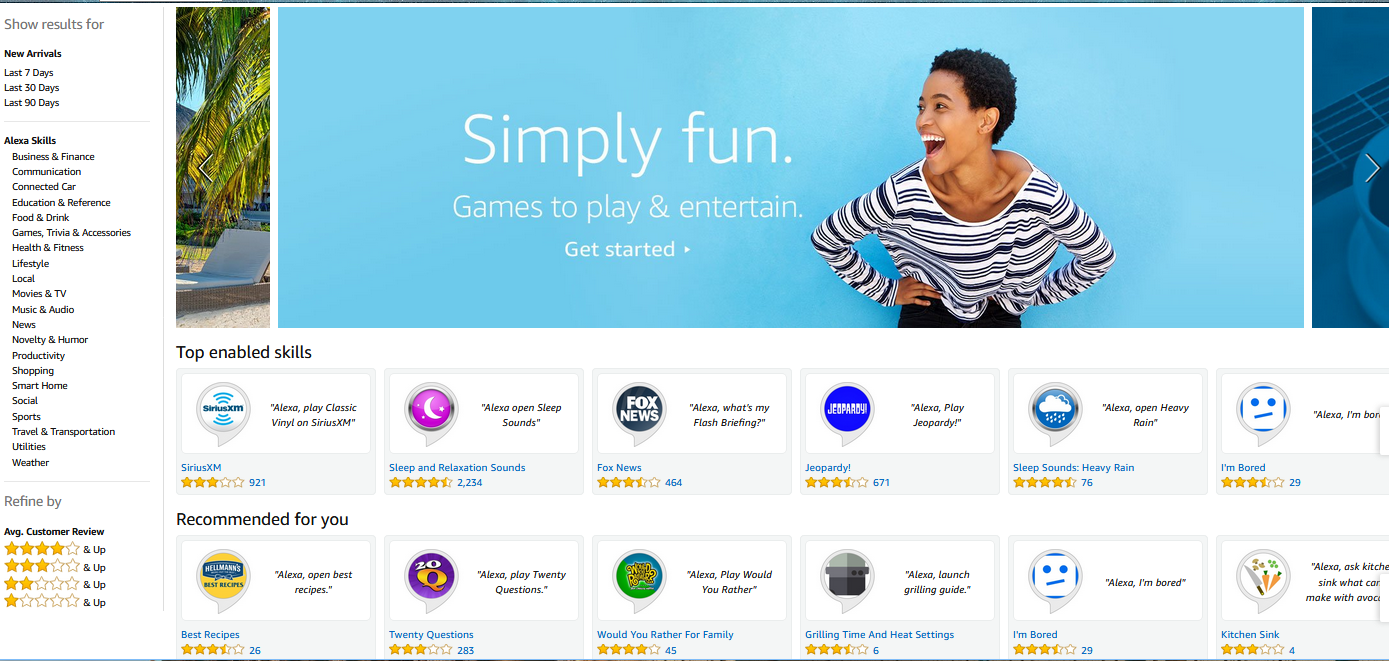
This is Part 3 of an in-depth look at Amazon's Alexa app and the Echo Family of Alexa-enabled devices. Part 1 introduced the Alexa app, talked about setting it up, accessing menus, using Alexa as a media and audiobook player, as well as pairing devices to the app. Part 2 looked at all the submenus in the settings section, as well as about lists, alarms, and reminders. It covered personalizing your devices, setting up news briefs, setting your location, changing your wake word, and changing other Alexa defaults. Part 2 discussed pairing accounts to Alexa, as well as customizing news and sports briefings, pairing a calendar, changing your music streaming defaults, and voice purchasing with Alexa. Part 2 covered customizing almost every Alexa setting that can be customized. Today, we're going to get to the fun stuff. Alexa can do a lot that's fun, inane, or just silly. Some of these things are available natively, while others require enabling skills.
What is an "Alexa Skill?
When you get a new Smartphone, it comes with certain abilities, like voice dialing, messaging, and a camera. It may not come with things like Facebook or a photo editor, but you can easily go to the App Store to add these capabilities. Likewise, a new PC comes with little more than a web browser pre-installed. You usually download or install additional software. Your Echo device comes with a lot of functionality built-in, but you can extend it through adding new skills.
An Alexa skill is like a phone app or a software program. It is a little program that will add new features to an Alexa compatible device. Presently, all Alexa skills are voice-driven. (That may change as Amazon develops Alexa devices with screens or cameras, like the Look and the Show.) And rather than "installing" a skill, you merely have to "enable" it.

