Showing posts with label Win10. Show all posts

February 8, 2018

Windows 10 has an Emoji Keyboard

Quick Tip: How to Access the Emoji Keyboard in Windows 10


Did You know Windows 10 includes a hidden Emoji Keyboard?  And that this Emoji Keyboard has a lot of the more popular emojis, including smileys, food, transportation, and celebration emojis?


You can access this hidden keyboard using a keyboard shortcut:

May 12, 2017

Quick Tip: What "Refresh" Means in Windows 10

Refreshing Your Operating System is
NOT Similar to Refreshing Your Screen


The term "Refresh" has been around since the days of MS-DOS. We've learned that the circle with an arrow icon stands for refresh, and that refreshing or reloading may help when things go wonky.  If you keep getting that "more stories" link on Facebook, images aren't loading, or your desktop suddenly looks strange, refreshing your screen has become almost second nature.  If things just don't look right, refresh.  99% of the time, that fixes things. We right-click and select "refresh," hit the F5 key, or click that circle with an arrow icon all the time to fix issues.

Then along comes Windows 10. Windows 10 was the first Operating System distributed primarily by downloading an update.   Few users have install disks, even if they bought a PC with Windows 10 pre-installed.  And Windows 10 looks A LOT different, confusing a lot of users.  All of the Tech Gurus tell new Windows 10 users not to worry, because it operates just the same.  All of the things that worked in previous versions of windows work in Windows 10.  The same keyboard shortcuts and right-click commands are there, and they perform just like they always did.

And so your PC starts acting up, and you're sure you should try the same old tricks you've tried in the past to avoid a visit from your Computer Person.  You start exploring the settings menu,  You click on the settings menu to try a system restore, when you come across the option to refresh your system. "Okay, let's try that," you think.  You tell Windows to refresh your PC, thinking it will just log you out of everything and reload it, similar to the way refresh works in every other situation.  Your PC reboots itself, and EVERYTHING is gone.  You panic.  "Where is my Quicken?  Where is my Outlook and all of my e-mails...it's can't be just all gone?  My games are gone, and I'd just reached that impossible level.  UGH!"


April 14, 2017

RoboForm: Absolutely the Best Password Manager

My FAVORITE Browser Utility!
Stores Log-ins and Fills Forms Quickly and Easily

Never Lose a Username or Password Again


RoboForm Review:

Password Managers:


It seems as if people have issues with lost passwords on a daily basis. I cannot believe there are people out there who still are not using password managers. There are many password managers from which to choose, some free and some paid, and some are most definitely better than others.

What is a Password Manager?  Simply put, it is an application that stores a database of your username and passwords.The better ones also include form-filling capabilities, so you can enter your information into a log-in form with a single click.  Most will also generate strong passwords for you. They are basically electronic safes for your digital personal information.  They are handy-dandy little things, especially in light of all the usernames and passwords a typical person needs to remember these days.  And having to reset passwords can be a real PITA, especially when you are short on time.  That is why if you're not using a Password Manager, I suggest you choose one and start using it immediately.

But don't pick just ANY Password Manager.  This IS your Personal Information, after all.  You don't want to trust the WRONG software with such valuable data.  You need to ensure the one YOU pick is secure and not easily hacked.

April 11, 2017

God Mode: Access ALL Windows Settings with a Single Click

Find Any Settings Category More Easily in Windows


EVERY time Windows introduces a new version, it seems to like to move things around.  This was especially true with both Windows 8 and Windows 10.  Suddenly, Windows had BOTH a "Settings" menu and a Control Panel.  AND the Control Panel was suddenly harder to find.  Now even experienced users need to poke around in several places to find how to adjust a system setting, and the less tech savvy user often gets lost.  Some users need to call a more experienced friend just to adjust a simple setting.

Well what if I told you there was an easier way?  Since Windows Vista, Microsoft has included a hidden feature called "God Mode."  Simply put, God Mode is a special folder that lists ALL system commands in a long list, grouped by category or function.  Unfortunately, this folder is NOT enabled by default.  If you want access to God Mode, you'll need to set that up.  This article will walk you through the steps to do so,

April 7, 2017

Quick Tip: Quickly Adjust Text Size

No More Squinting! 

Learn How to Adjust the Size of Text on a Web Page Using
CRTL+ and CTRL-


Web-based documents are great for those of us with non-perfect vision.  No longer do we need to squint at tiny text.  One of the most powerful aspects of electronic documents is the ability to adjust them, so that they best work for you.  Graphics-folks may love fitting a lot of stuff on to one screen, but I prefer NOT having to reach for the reading glasses.  Fortunately, there is a VERY EASY trick to bump text size up or down, with a single key combination.


March 22, 2017

Quick Tip: Stop Window's 10 From Nagging You

Hate those "ads" that pop up when you use non-default programs?

So do I!


I generally like Windows 10, with some minor tweaking, but it DOES have its share of annoyances.  Ever been happily typing away in Chrome or Firefox, when all of the sudden, you are disrupted by a pop-up by your clock, suggesting you try Edge?


When Windows 10 first started showing these "harass boxes," as I like to call them, I immediately ran a malware scan, sure I'd picked up some ad-ware somewhere.   Nope...not malware, but rather a new, "helpful" Windows "feature."All those quotation marks should give you an idea of how much these boxes thrilled me.


So, of course, me being me, I immediately set out to disable these suckers.  Turns out, it's fairly easy.

March 8, 2017

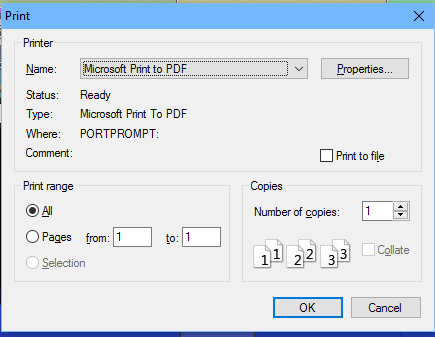
The Print Command vs. The Print Icon

With 99% of Windows functions, there is no difference between using the Toolbar icon or the menu command.  But did you know there is a difference when it comes to Printing?

The Print Dialog Box


March 6, 2017

Get Rid of that Pesky Log-In Box At Startup

Windows keeps trying to enforce better security on "lazy" users.  As a part of this, Windows Update has begun to require  a password log-in screen, even on systems that never previously showed one at boot-up.  One of the TOP questions I get is "How do I make Windows stop making me log in after a reboot?"  Or "Why do I suddenly have to log in to Windows at startup?  I never did before?"  Or "Why is windows suddenly asking for a password?"

win10 login screen

How to Stop Windows From Asking for a Password at Log-In

Before I tell you how to disable this added "feature," I want to make the standard disclaimer.  Disabling log-in at start up weakens your overall security.  Not having a password means anyone can snoop on your system.  If you regularly take your system out of your house, I strongly recommend you use a log-in password.