Showing posts with label Keyboard Shortcuts. Show all posts

February 8, 2018

Windows 10 has an Emoji Keyboard

Quick Tip: How to Access the Emoji Keyboard in Windows 10


Did You know Windows 10 includes a hidden Emoji Keyboard?  And that this Emoji Keyboard has a lot of the more popular emojis, including smileys, food, transportation, and celebration emojis?


You can access this hidden keyboard using a keyboard shortcut:

June 2, 2017

How Well Do You Know Keyboard Shortcuts? A Quiz and a Review

How Well Do You Know Keyboard Shortcuts?
Take Our Quiz to Find Out!

Keyboard Shortcuts Presented in Quiz Format,
And More on QuizRevolution as a Resource


Usually, Friday posts are Quick Tips.  Today's post is really a Quick Tips post, wrapped up in a Quiz.

This post was originally going to be "A List of Useful Keyboard Shortcuts." However, if you've been following this blog, you'll know we are in the middle of a series on Internet Quizzes and the related privacy issues.  As a part of this series, we have been exploring GOOD quiz sites, both from a user standpoint and from a marketing standpoint.

So today's list of keyboard shortcuts is presented in a quiz format. It's a fill-in -the-blank type quiz, with the answers presented after each question.There are 20 different Keyboard Shortcuts in the quiz.

Instead of writing a boring list of useful keyboard shortcuts, I dumped the list into a quiz.  Hope you enjoy playing and learning at the same time!

More information about QuizRevolution.com, the site on which this quiz is hosted, follows the quiz. If you are interested in blogging, marketing, and those types of aspects, keep reading after the quiz.  If you're just interested in keyboard shortcuts, take our quiz and learn while you play.

(Click "read more" for quiz and review.)

April 11, 2017

God Mode: Access ALL Windows Settings with a Single Click

Find Any Settings Category More Easily in Windows


EVERY time Windows introduces a new version, it seems to like to move things around.  This was especially true with both Windows 8 and Windows 10.  Suddenly, Windows had BOTH a "Settings" menu and a Control Panel.  AND the Control Panel was suddenly harder to find.  Now even experienced users need to poke around in several places to find how to adjust a system setting, and the less tech savvy user often gets lost.  Some users need to call a more experienced friend just to adjust a simple setting.

Well what if I told you there was an easier way?  Since Windows Vista, Microsoft has included a hidden feature called "God Mode."  Simply put, God Mode is a special folder that lists ALL system commands in a long list, grouped by category or function.  Unfortunately, this folder is NOT enabled by default.  If you want access to God Mode, you'll need to set that up.  This article will walk you through the steps to do so,

April 7, 2017

Quick Tip: Quickly Adjust Text Size

No More Squinting! 

Learn How to Adjust the Size of Text on a Web Page Using
CRTL+ and CTRL-


Web-based documents are great for those of us with non-perfect vision.  No longer do we need to squint at tiny text.  One of the most powerful aspects of electronic documents is the ability to adjust them, so that they best work for you.  Graphics-folks may love fitting a lot of stuff on to one screen, but I prefer NOT having to reach for the reading glasses.  Fortunately, there is a VERY EASY trick to bump text size up or down, with a single key combination.


March 10, 2017

Keyboard Shortcuts: Undo or the "Whoops" Key

If you're anything like me, you make a lot of mistakes.  And you hit a lot of wrong keys.  Often, you realize you are hitting the wrong key as you feel your finger make contact, too late to take it back.

Luckily, because this is computing, not life, you CAN take it back.  Did you know there is an "Undo" command that works in most Windows applications? To access it, all you need to do is press CTRL+Z.

CTRL+Z is probably my MOST used key combination.  No kidding.  I must use it at least a dozen and a half times a day.  I've used it twice while typing this post.

Certain Windows programs (and most Office applications) support a multi-level UNDO.  That means you may use CTRL+Z to go back several actions.  Depending on what you are doing, it may undo typing, formatting, or even inserting content.  Unfortunately, it does not act as an "unsend" command yet.  And in many applications, the UNDO command will be unavailable immediately after a save.  (And unfortunately, it will not undo the save command either.)

Again, this works in 99% of the Windows applications and most browser based applications.  It works most anywhere you can type.  Its specific behavior depends on the application, but CTRL+Z will always perform an undo.

I wish LIFE had a CTRL+Z command sometimes!

March 8, 2017

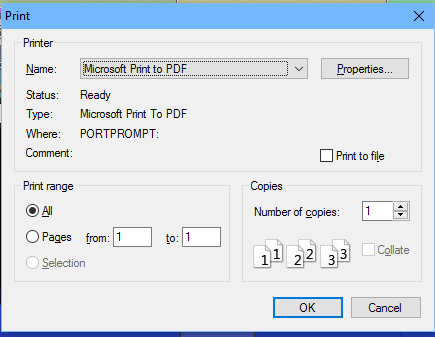
The Print Command vs. The Print Icon

With 99% of Windows functions, there is no difference between using the Toolbar icon or the menu command.  But did you know there is a difference when it comes to Printing?

The Print Dialog Box